Services and pricing
Explain what you offer, lay out your packages, and make it clear how to work with you.
The conversation is already in Claude. Your next website can start there, too. Connect Ember to design a new site, edit one you own, and publish when you're ready.
Use your Claude account and an Ember account. No API key to copy.
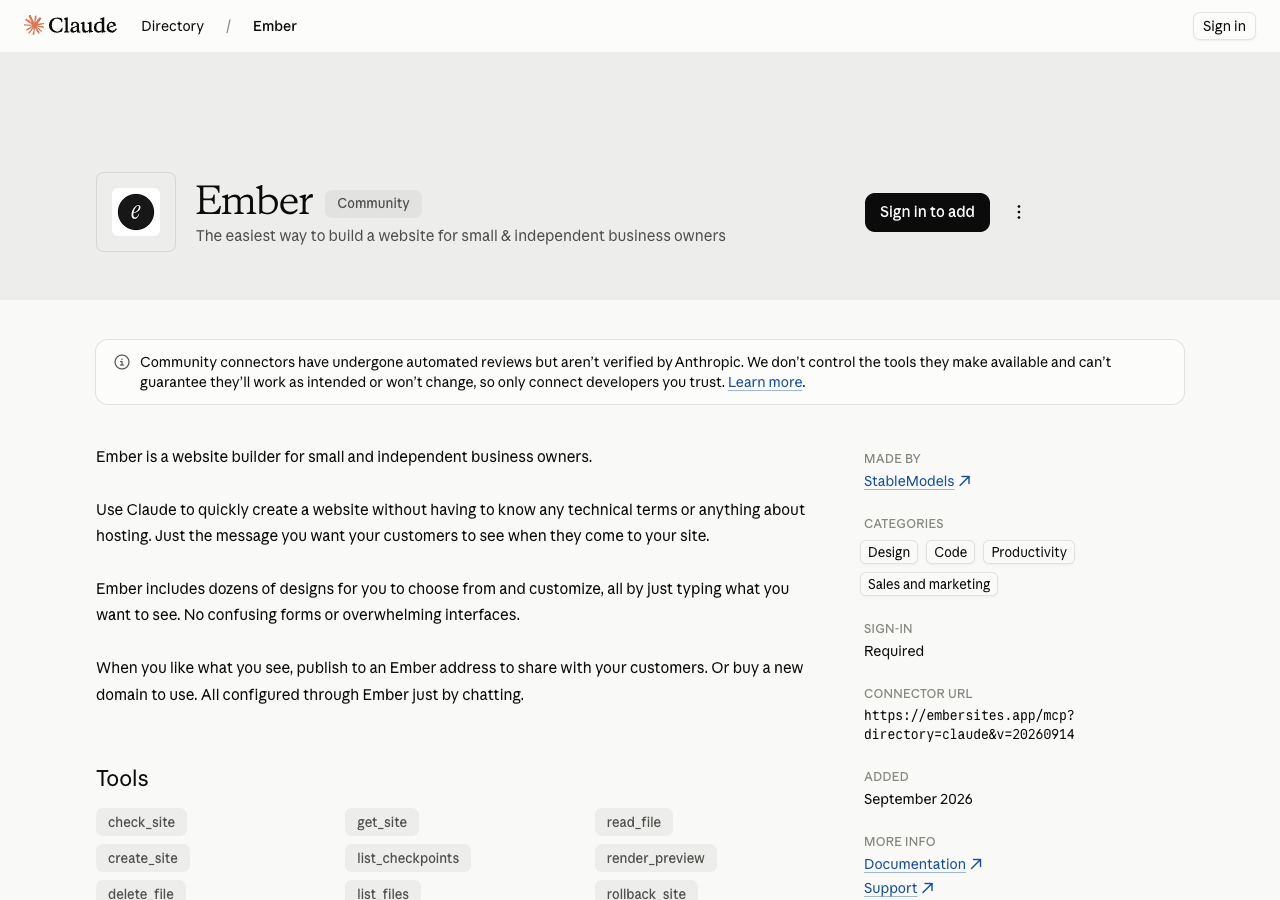
Claude is where you chat. Ember is where your sites live. Connect the two once, then work on your website from a Claude conversation.
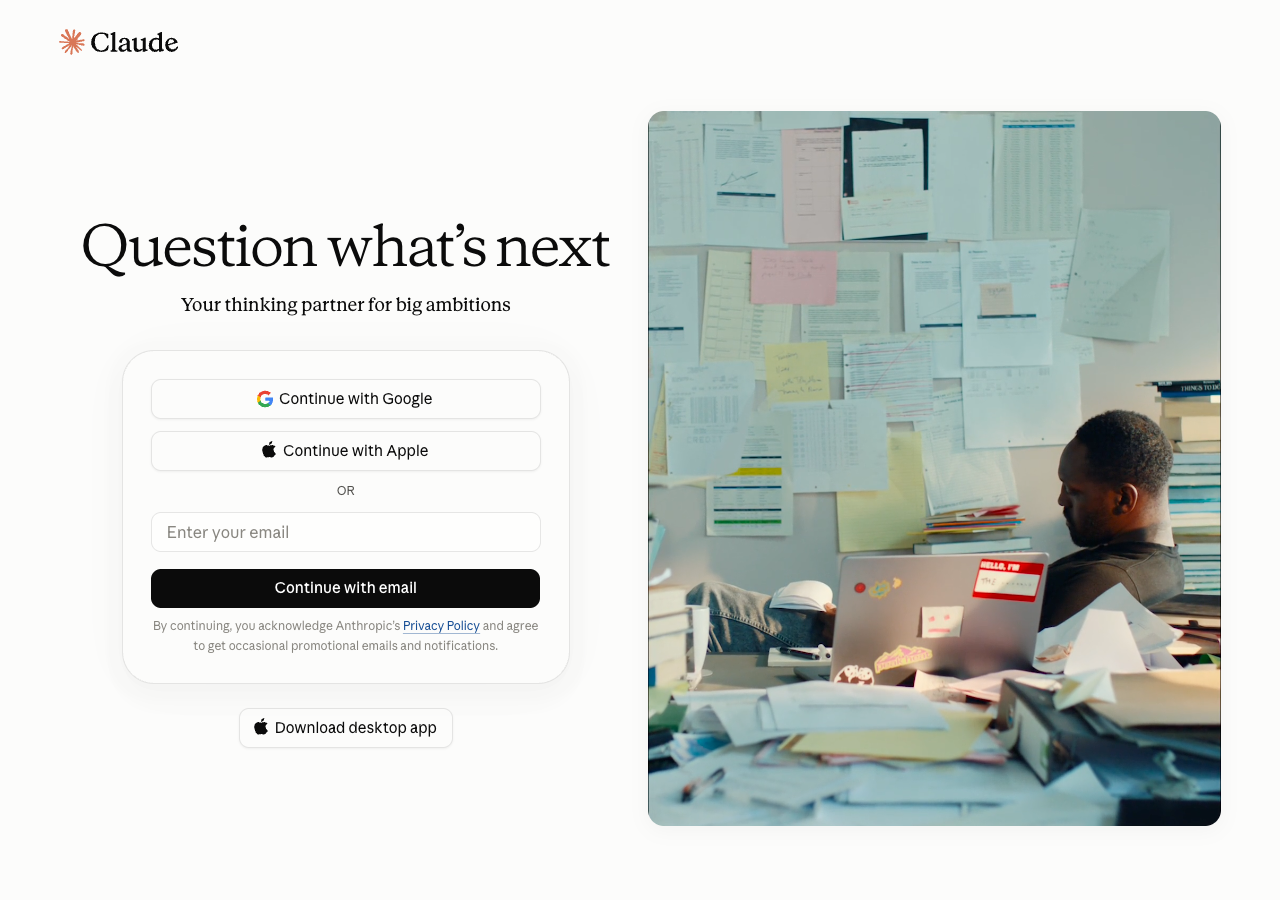
Visit Ember in Claude's directory and select Connect. If you're signed out, select Sign in to add and sign in to Claude first.
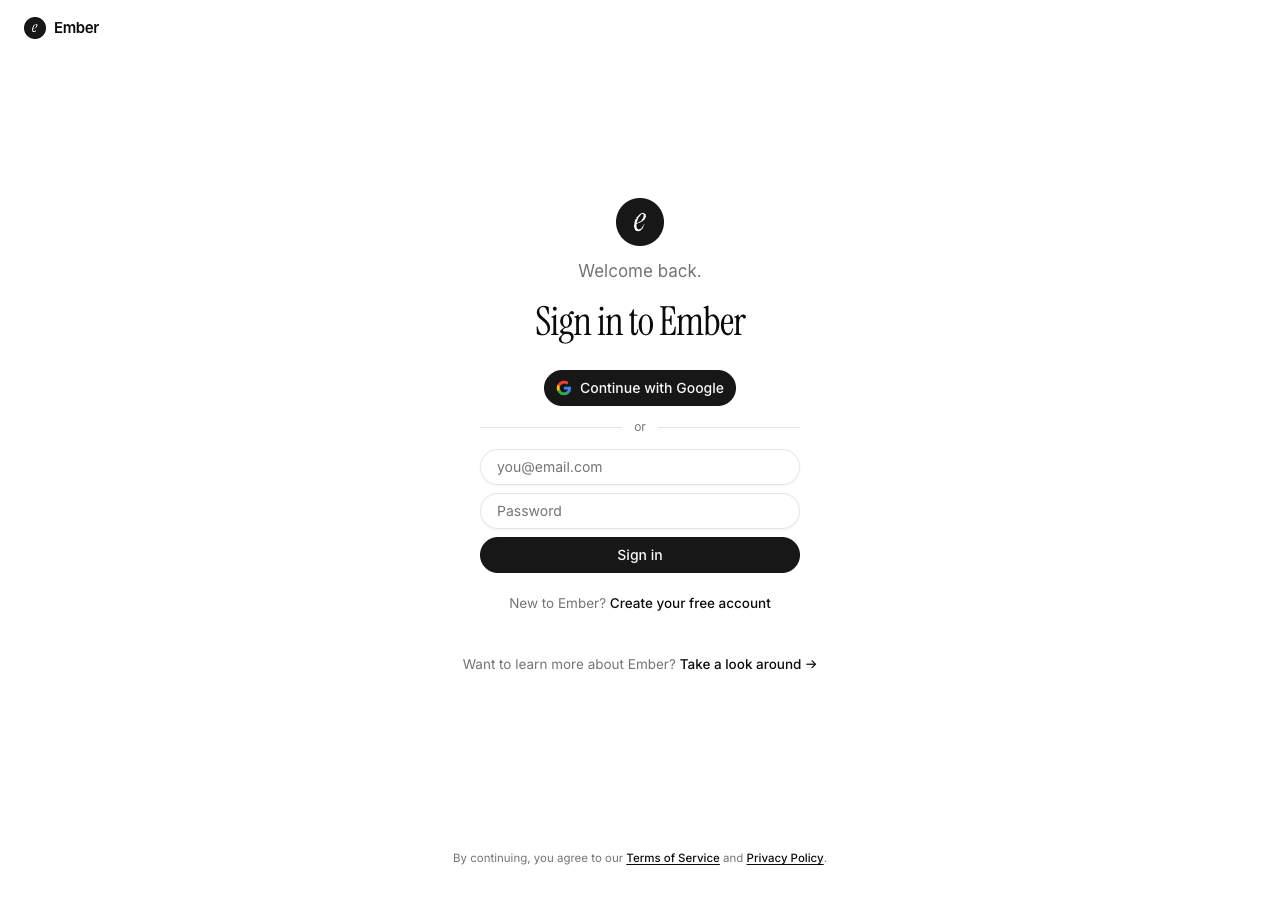
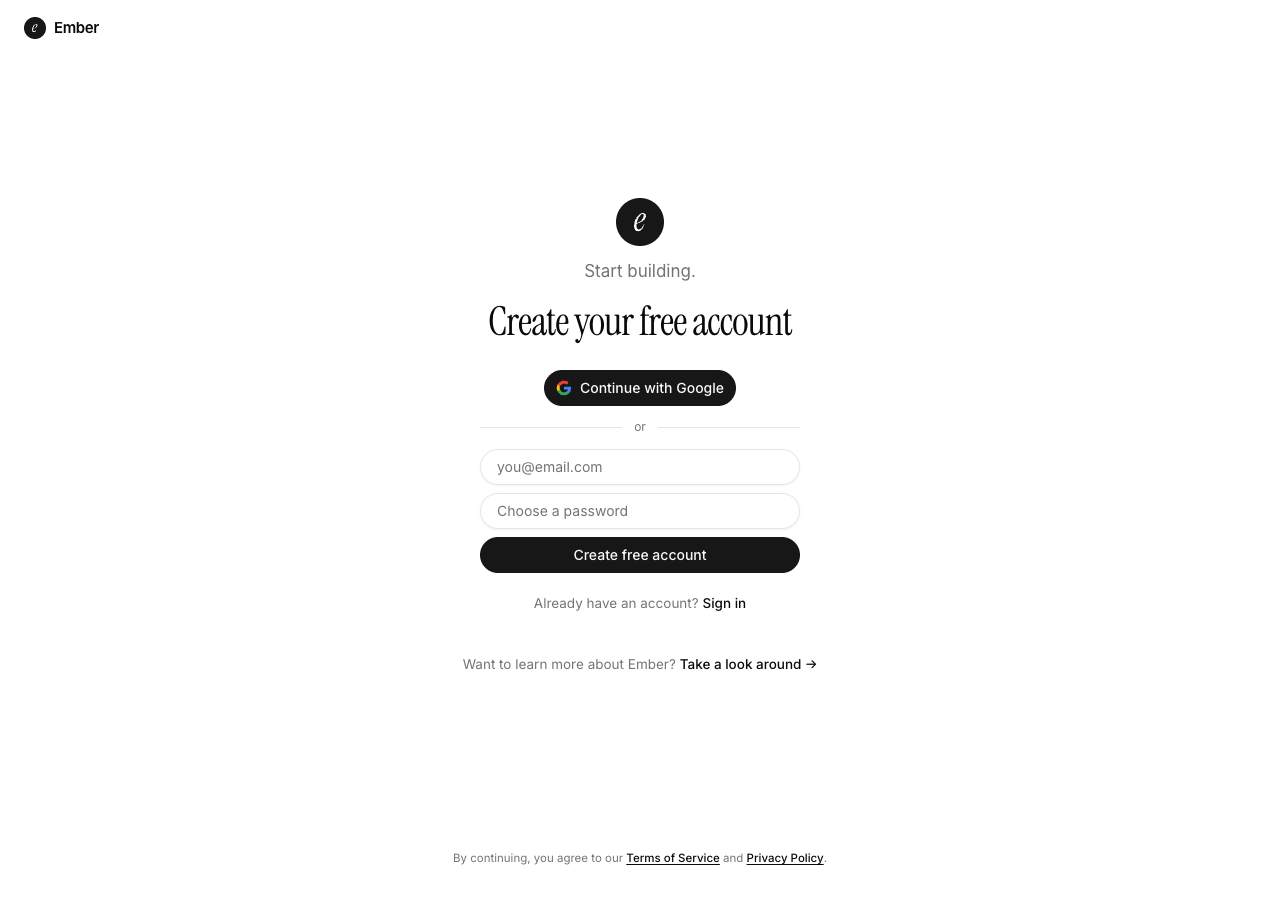
When Ember asks you to sign in, use Continue with Google or your Ember email and password. New to Ember? Choose Create your free account to register with Google or email. If you already have sites, use the account that owns them.
Once you have connected Claude to your Ember account, open a new Claude chat. And paste a prompt like this to get started with a new website for your business.
Use the Ember connector to create a new website for Juniper Studio, my one-person brand design business. Include services, a portfolio, an about page, and a contact form. Use sample copy. Let me choose the design, then show me a private preview. Do not publish yet.
Real browser captures, September 2026. Screenshots show the public listing and sign-in forms—not a completed signup or consent screen. Select the directory image to open Ember's listing, or a sign-in image to see it full size.
Find it in settings: open Customize → Connectors, then Browse connectors. Team and Enterprise owners may need to enable Ember for the organization first with Connect for your team; each member connects their own Ember account.
Direct connection: choose Add custom connector and enter https://embersites.app/mcp. Connect and authorize your Ember account. Your organization's settings may restrict custom connectors.
Need help? See Claude's connector instructions. You can manage or disconnect Ember in Claude's connector settings.
Tell Claude what your business needs. Use Ember to bring your services, work, and stories together on a site you can update by chatting.
Explain what you offer, lay out your packages, and make it clear how to work with you.
Show your projects, photography, or client work with images and the stories behind them.
Share articles, guides, and updates. Ask Claude to use Ember when it's time to add something new.
Give visitors a way to ask a question or inquire about working with you, right from your site.
Use Ember to build a website for a neighborhood beer garden called Alder & Ale. Include a menu, weekly events, and visiting information. Let me choose the design, then show me a private preview. Don't publish yet.
Use Ember to list my Ember sites. Open my beer garden site, add the new summer menu from my notes, and make the opening hours easy to find on mobile. Keep the current design and show me a preview before publishing.
Ember is a Community connector made by StableModels, not verified by Anthropic. Claude and Anthropic branding appears in unaltered screenshots of their product; this is an Ember guide, not an Anthropic endorsement.
Connect Ember, bring your idea, and make a site you can share.